
If you have tried to log in to your Google Business Profile (GBP) recently and felt totally confused, you are not alone.
Back in the day, we had a nice, dedicated “Google My Business” dashboard. It was clean. It made sense. But as we move deeper into 2026, Google has aggressively shifted towards what they call the “New Merchant Experience” (NMX).
Basically, they are forcing business owners to manage their profiles directly on Google Search and Maps.
If you are just looking for a “login” button and keep getting thrown onto a search result page, it feels like a bug. But it is actually a feature.
However, the “Business Profile Manager” dashboard does still exist. It is just hiding. It is mostly for people managing multiple locations or agencies who need to see everything at a glance.
This guide clarifies the chaos. I will cover exactly how to access your profile whether you have one location or one hundred, how to bypass those annoying login loops, and which interface you should actually be using for your local SEO.
The Two Ways to Log In (And Which One You Need)
Here is where most people get tripped up. There isn’t just one front door anymore. There are two, and they lead to very different rooms.
The “In-Search” Interface (For Single Businesses)
If you own a local coffee shop or a plumbing service with just one or two locations, this is your new home.
When you click “Sign In” on the standard Google Business page, Google redirects you to the Search Results page. That is not an error. You will see a dashboard labeled “Your Business on Google” right above the organic search results.
It looks a bit messy at first, honestly. But it allows you to edit hours, add photos, and reply to reviews without leaving the search page.
The “Profile Manager” Dashboard (For Agencies & Chains)
This is the “old school” view. You access it at business.google.com.
If you manage 50 locations for a pizza chain, doing it through Google Search would be a nightmare. You need lists. You need bulk actions.
This view is far superior for bulk updates, but here is the catch. It is limited for visual editing now. If you try to edit a specific profile deep in the settings, Google will often kick you back out to the “In-Search” interface anyway.
Method 1: Accessing via Google Search (The Standard Way)
For 95% of business owners, this is how you are going to work from now on.
Step 1: Check Your Account
Make sure you are logged into the correct Google Account. I know, this sounds obvious. But I have lost count of how many times I panicked because I couldn’t find a client’s listing, only to realize I was logged into my personal Gmail.
Step 2: The Magic Keywords
Go to https://www.google.com/search?q=Google.com and type “my business” into the search bar. You can also type your exact business name.
Step 3: Locate the Merchant Panel
You aren’t looking for a website link. You are looking for a panel of icons that shows up above the search results. It will have buttons like Edit profile, Read reviews, and Messages.
If you see that, congratulations. You are logged in.
Pro Tip:
I bookmark the search result page for “my business” on my browser toolbar. It saves me typing it in every morning. It sounds lazy, but it saves seconds that add up.
Method 2: Accessing via Google Maps (Mobile Management)
A lot of folks are still looking for the “Google My Business” app in the App Store.
Bad news. That app was sunset years ago. It is dead.
If you want to manage your listing on your phone, you have to use Google Maps.
Step 1: Open the Google Maps app on iOS or Android.
Step 2: Tap your profile picture in the top right corner.
Step 3: Select “Your Business Profiles” from the menu.
From here, you will see a list of the businesses you manage. Tap one, and you get a mobile-friendly version of the dashboard. It is actually pretty slick for uploading photos on the fly.
Method 3: The Bulk Manager Dashboard (For Pros)
Now for the part most people skip or don’t know about.
If you are an agency owner or you handle marketing for a franchise, the In-Search experience is too slow. You need the list view.
Step-by-Step Access
Navigate directly to business.google.com/locations.
Sometimes, Google tries to be “helpful” and redirects you to Search even if you type this URL. If that happens, try clearing your cache or using a different browser profile.
Managing Location Groups
This is the only place where you can effectively manage Location Groups. If you have different teams managing different regions, you can group those locations here and assign user permissions to the group rather than the individual listing.
My previous experience suggests that if you have more than 10 locations, you simply cannot survive without this view.
Troubleshooting: “I Can’t Log In!”
This is the frustrating part. You type the password, you click the link, and nothing happens. Or worse, Google tells you that you don’t exist.
Issue 1: “You do not have access to this profile”
This usually happens because of the email mix-up I mentioned earlier. You are likely logged into a personal email, not your business admin email.
Solution:
Use the “Find my account” tool on the Google Business Profile help page. You enter the business name, and it will show you a hint of the email address that owns the listing (e.g., ad…@gmail.com). If that doesn’t ring a bell, you might have to request access from the current owner.
Issue 2: The “Login Loop”
You click “Sign In,” the page refreshes, and you are back at the “Sign In” page.
I’d probably mess this up if I rushed, but the fix is usually boringly simple. Clear your browser cache and cookies. If that fails, open an Incognito window (or Private window).
About 60% of the time, it works every time.
Issue 3: Verification Required Loop
If you haven’t verified your profile, Google might lock you out of most features.
In 2026, the Video Verification process is the standard. You can’t just get a postcard anymore for most categories. If you are stuck here, you have to grab your phone and record the video exactly as they ask. Capture the street sign, the unlocking of the door, and your payment terminal.
If you try to skip this, you will stay in the login loop forever.
Security Best Practices for 2026
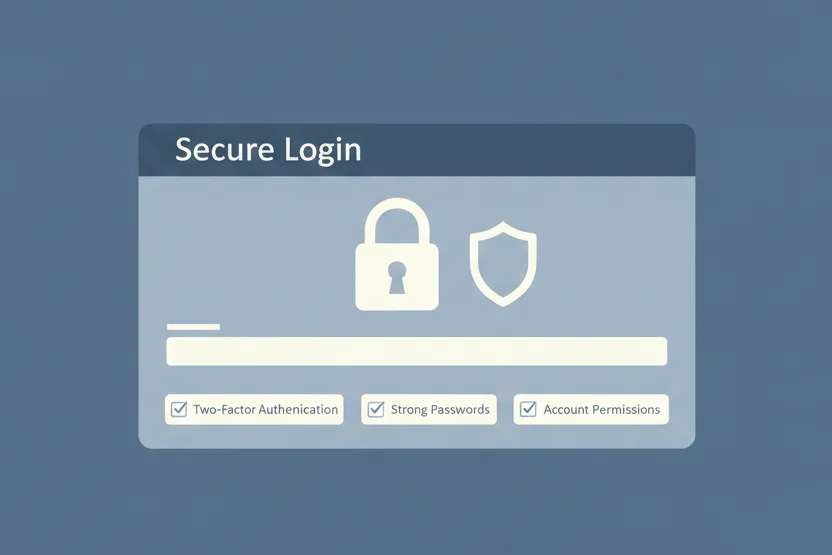
Since your Google Business Profile is basically your digital storefront, losing access to it is a disaster.
Two-Factor Authentication (2FA)
This is not optional anymore. If you don’t have 2FA turned on for the Google account that owns your listing, you are asking for trouble.
Phishing Scams
I get these emails at least once a week. They say something like, “Your Business Profile is Suspended due to policy violation. Click here to appeal.”
Do not click.
Check the sender’s email address. If it doesn’t end in @google.com, it is a scam. These guys want your login credentials so they can hijack your listing and hold it for ransom. It is nasty stuff.
Audit Your Users
Every time I log into a client’s account, I check the “Users and access” section.
Sometimes I find old employees or marketing agencies from three years ago who still have “Manager” access. Remove them. If they get hacked, your listing gets hacked.
Frequently Asked Questions (FAQs)
Is there a desktop app for Google Business Profile in 2026?
No. There is no desktop app and no mobile app dedicated to it. Everything lives in the browser or inside Google Maps.
How do I switch between multiple businesses on the same Google account?
If you are in the Search interface, you usually have to search for the specific business name to pull up its dashboard. If you use the Bulk Manager (business.google.com/locations), you can see them all in a list.
Why can’t I see the “Home,” “Posts,” or “Insights” tabs anymore?
Those tabs from the old left-hand sidebar are gone.
“Posts” are now “Add Update.”
“Insights” are now “Performance.”
The menu relocation confuses everyone at first, but the data is still there. You just have to click the new icons.
Conclusion: Stop Searching for the Dashboard
Google wants us to use the Search interface. It feels clunky, and honestly, I still miss the old dashboard sometimes. But fighting it is a waste of energy.
If you are a small business, embrace the “In-Search” interface. It is fast enough for daily updates.
If you are an agency, bookmark the Bulk Manager URL and guard it with your life.
Here is what you should do right now:
Open a new tab, type “my business” into Google, and bookmark that page. It is the fastest way to get to work tomorrow.